Bulk Delete in GoHighLevel CRM: Unlimited Record Deletion with 60-Day Restore
Managing data efficiently is one of the biggest challenges for growing businesses and agencies. As CRMs scale, so does the volume of records — including outdated entries, test data, and incorrectly imported information.
Until now, cleaning up large datasets was time-consuming and restrictive. Teams had to either delete records one by one or deal with limits that slowed down operations.
That changes with the latest update:
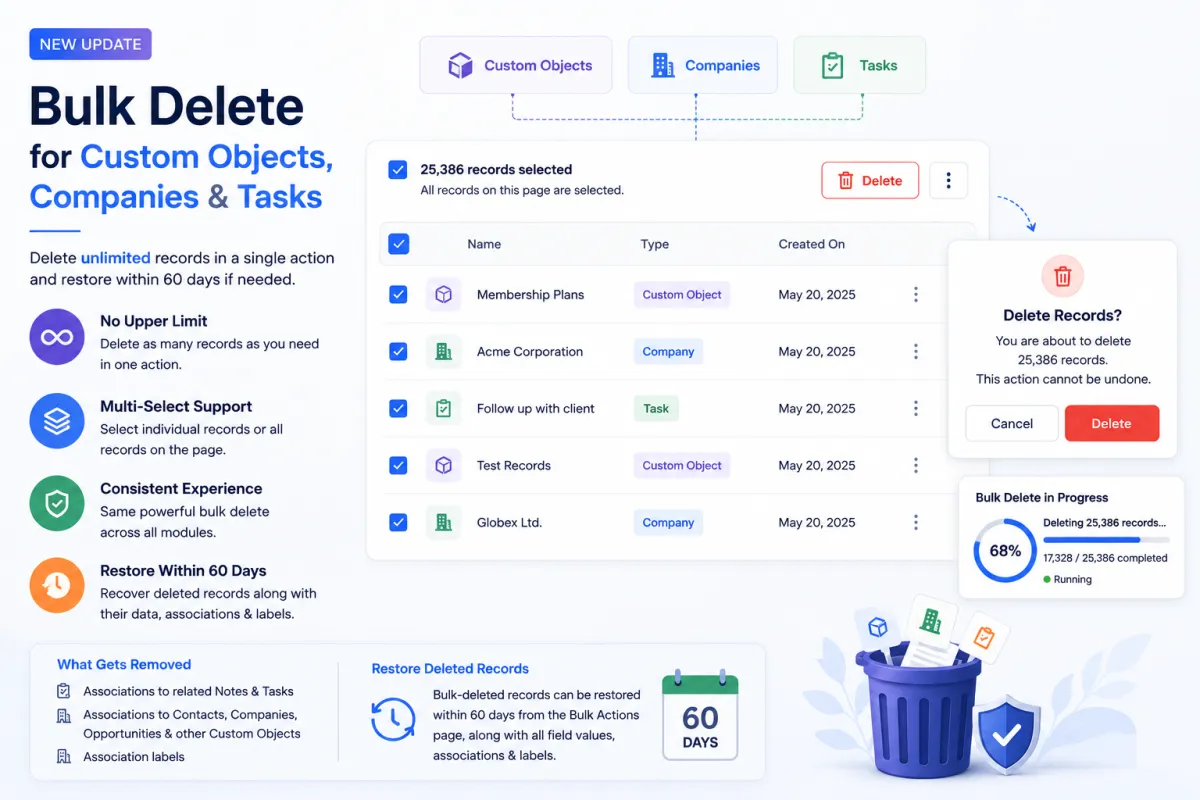
Bulk Delete for Custom Objects, Companies, and Tasks
This new feature introduces a powerful, scalable way to delete records in bulk, with no upper limit on how many records can be removed in a single action.
The Problem Before This Update
Before this release, the deletion process had several limitations that created friction.
1. No Bulk Delete for Custom Objects
Custom Objects did not support multi-select functionality in the list view.
This meant:
Records had to be deleted individually
Cleanup processes were slow and inefficient
Managing large datasets became frustrating
2. Limitations on Companies and Tasks
While Companies and Tasks supported bulk deletion, there was a restriction:
Maximum of 100 records per action
For larger datasets, this required:
Repeating the same process multiple times
Managing records in batches
Increased risk of errors
3. Inconsistent User Experience
Each module behaved differently, making the workflow less intuitive.
Users had to adjust their process depending on the object type, which added unnecessary complexity.
What’s New in Bulk Delete
This update removes all these limitations and introduces a unified, efficient deletion experience.
Unlimited Bulk Deletion
You can now delete:
Custom Object records
Company records
Task records
with no upper limit.
This means:
No batching required
No repeated actions
Faster cleanup of large datasets
Multi-Select for Custom Objects
Custom Objects now support:
Checkbox selection in list view
Bulk actions similar to other modules
This brings Custom Objects in line with the rest of the CRM.
Consistent Experience Across Modules
All three modules now follow the same workflow:
Select records
Perform bulk actions
Track progress
This consistency improves usability and reduces confusion.
Restore Option (Within 60 Days)
One of the most important additions is the ability to restore deleted records.
If something goes wrong, you can:
Recover records within 60 days
Restore associated data
Maintain data integrity
How Bulk Delete Works
The process is simple and designed for efficiency.
Step-by-Step Process
Navigate to Custom Objects, Companies, or Tasks
Use checkboxes to select records
Use the header checkbox to select all records on the page
Click Delete from the bulk actions bar
Confirm the deletion
Track Progress
After initiating the deletion:
The system processes the action in the background
You can monitor progress from the Bulk Actions page
Logs provide visibility into the operation
What Happens When You Delete Records
Understanding what gets removed is important for maintaining data structure.
Removed Elements
When a record is deleted, the system removes:
Associations with Notes and Tasks
Links to Contacts, Companies, Opportunities
Connections with other Custom Object records
Any association labels
What Stays Intact
The actual related records are not deleted.
Only the relationships between them are removed.
This ensures:
No unintended data loss
Clean disconnection instead of full deletion
Restoring Deleted Records
Mistakes can happen, especially when working with large datasets.
This feature includes a safety net.
How to Restore Records
Go to the Bulk Actions page
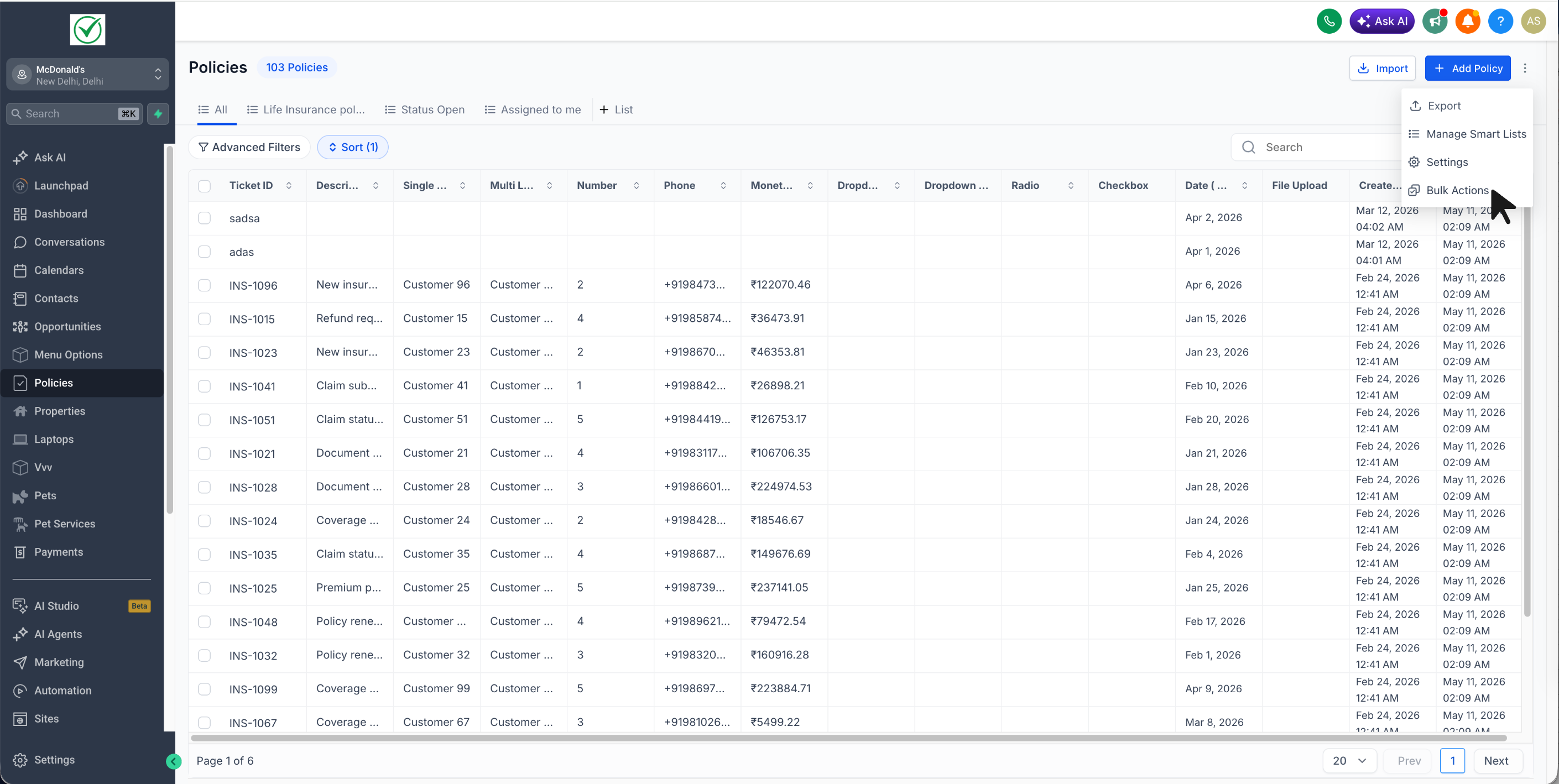
Locate the deletion job
Click the three-dot menu
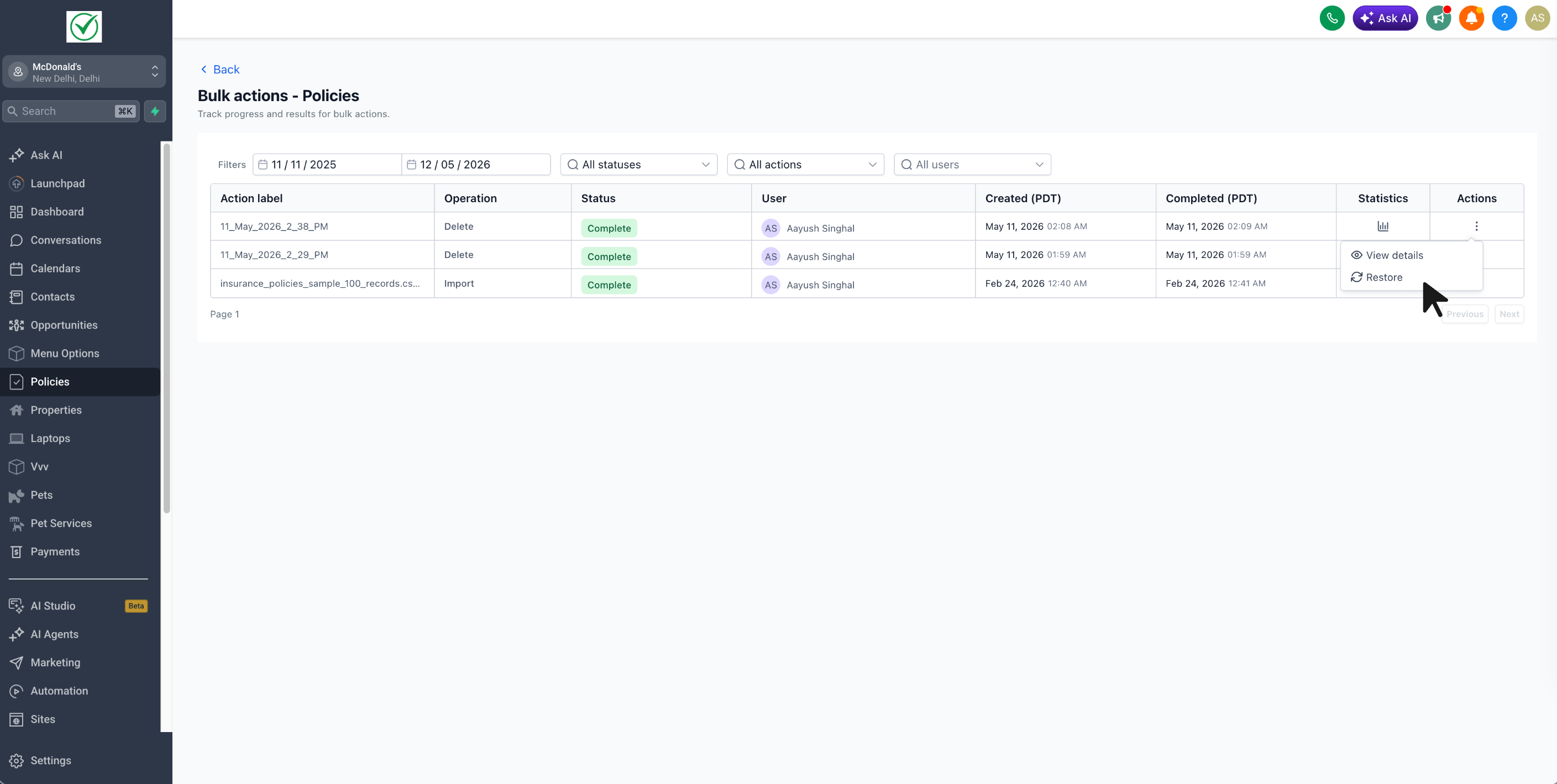
Select Restore
What Gets Restored
The system restores:
Original records
Field values
Associations
Association labels
The restore runs as a separate job and fully reinstates the data.
Why This Feature Matters
Bulk Delete is more than just a convenience — it directly impacts efficiency, accuracy, and scalability.
1. Faster Data Cleanup
Teams can now:
Remove thousands of records instantly
Clean up test data in seconds
Fix mis-imported datasets quickly
2. Eliminates Manual Work
No more:
Deleting records one by one
Repeating bulk actions in batches
Managing multiple cleanup cycles
3. Reduces Operational Friction
The unified experience means:
Less confusion
Faster onboarding for new users
Smoother workflows
4. Built-in Safety with Restore
The 60-day restore window provides:
Confidence during bulk operations
Protection against accidental deletion
Easy recovery without data loss
5. Scales with Your CRM
As your business grows, so does your data.
This feature ensures your CRM can:
Handle large datasets efficiently
Maintain clean and organized records
Support long-term scalability
Practical Use Cases
This feature is valuable across multiple scenarios.
Cleaning Test Data
Developers and teams can quickly remove:
Sandbox records
Testing entries
Temporary data
Fixing Incorrect Imports
If a dataset is imported incorrectly, you can:
Delete it instantly
Re-import clean data
Avoid manual corrections
CRM Optimization
Regular cleanup helps:
Improve performance
Maintain data quality
Keep workflows efficient
Agency Operations
Agencies managing multiple clients can:
Clean up sub-accounts faster
Maintain consistency across accounts
Reduce time spent on maintenance
Where to Find This Feature
This feature is currently available under:
👉 Subaccount → Labs
Make sure it is enabled to start using it.
