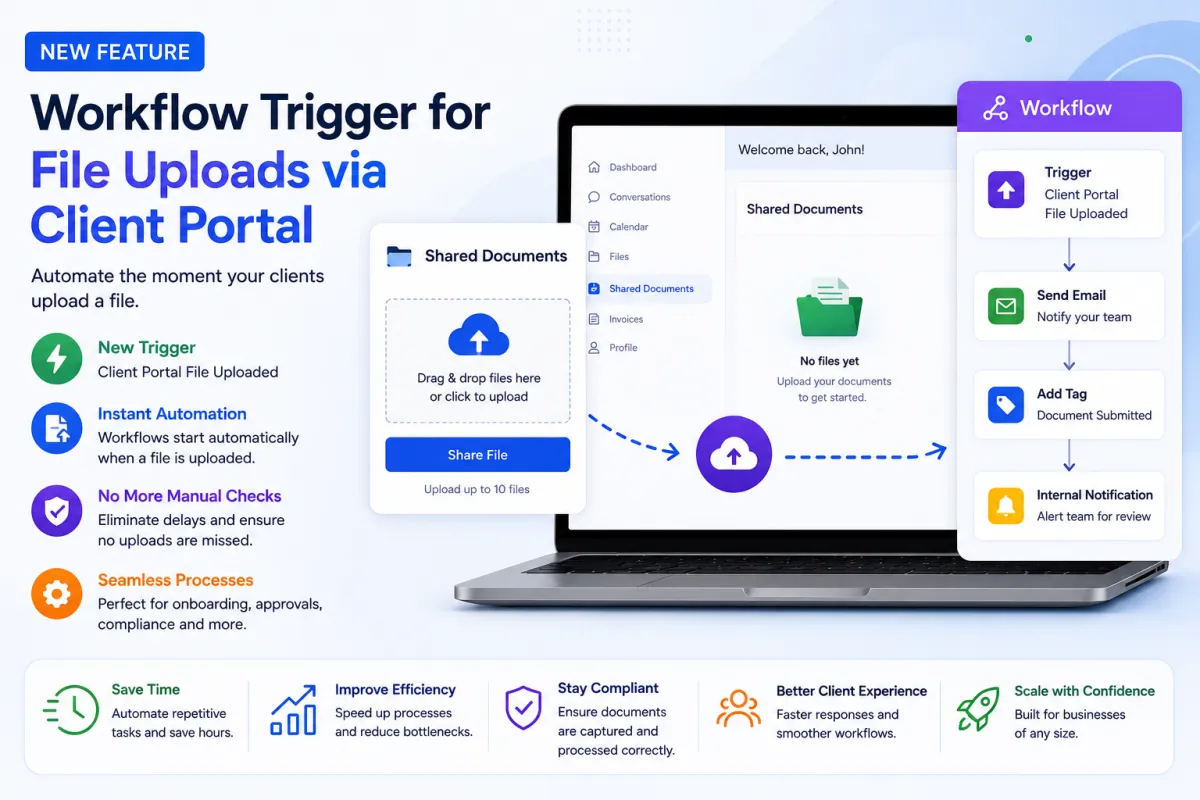
Workflow Trigger for File Uploads via Client Portal
Automate Document-Driven Workflows Like Never Before
Managing documents is a critical part of many business processes—whether it’s onboarding new clients, collecting compliance documents, reviewing contracts, or handling approvals. However, one of the biggest challenges businesses face is the gap between document upload and action.
Until now, teams often had to manually monitor file uploads, follow up with clients, and trigger the next steps themselves. This not only slowed down operations but also increased the risk of missed files and delayed responses.
With the introduction of the Client Portal File Uploaded workflow trigger, this gap is finally closed.
A Smarter Way to Handle File Uploads
HighLevel has introduced a new workflow trigger called “Client Portal File Uploaded”, designed to automatically initiate workflows whenever a contact uploads a document through the Client Portal.
This means that the moment a file is uploaded, your system can instantly respond—without any manual intervention.
No more checking dashboards.
No more delays.
No more missed uploads.
Everything happens automatically, in real time.
What’s New
1. New Workflow Trigger: Client Portal File Uploaded
The core of this update is a powerful new trigger that activates workflows whenever a file is uploaded via the Client Portal’s Shared Documents section.
This allows businesses to:
Automatically respond to document submissions
Trigger follow-ups or internal notifications
Start approval or verification processes
Update CRM records instantly
It turns file uploads into actionable events within your automation system.
How It Works
Setting up this automation is simple and requires no complex configuration.
Step-by-Step Setup
Navigate to Automation → Workflows
Create a new workflow or open an existing one
Add the trigger Client Portal File Uploaded
Define your workflow actions (notifications, tagging, updates, etc.)
Publish the workflow
Once active, the workflow will automatically run every time a client uploads a file.
Sharing Files with Clients
This feature works seamlessly with the existing Client Portal file-sharing system.
How to Share a File with a Client
Open a specific contact
Click the Files icon from the right-side panel
Upload a file
Select Upload to Client Portal
Save
The file will instantly appear in the client’s portal, making collaboration smooth and transparent.
How Clients Upload Files
From the client’s perspective, the process is simple and user-friendly.
Steps for Client Upload
Log in to the Client Portal
Navigate to Shared Documents
Click Share File
Upload one or multiple files (up to 10 at a time)
Submit
Once submitted, the system immediately triggers the workflow you’ve configured.
Multiple file types are supported, making this suitable for a wide range of industries and use cases.
Why This Feature Matters
This update solves a real operational problem faced by many businesses: the delay between file submission and action.
1. Eliminates Manual Monitoring
Previously, teams had to constantly check for new uploads. Now, the system does it for you.
The moment a file is uploaded, your workflow begins automatically.
2. Reduces Operational Delays
With automation in place, there’s no waiting time between document submission and the next step.
This leads to:
Faster approvals
Quicker onboarding
Improved turnaround times
3. Ensures Nothing Gets Missed
Manual processes are prone to errors. Files can be overlooked, especially in high-volume environments.
With automated triggers:
Every upload is captured
Every action is initiated
Nothing falls through the cracks
4. Improves Compliance and Accuracy
For industries that require strict documentation—such as legal, finance, healthcare, or real estate—this feature ensures that all required documents are processed consistently.
You can:
Automatically flag missing documents
Trigger verification workflows
Maintain audit trails
5. Creates Seamless Customer Journeys
This feature allows you to build document-driven workflows that feel smooth and professional from the client’s perspective.
For example:
A client uploads ID proof → Verification process starts automatically
A contract is uploaded → Approval workflow is triggered
Required documents are submitted → Onboarding sequence begins
This creates a frictionless experience for both clients and teams.
Real-World Use Cases
Client Onboarding
Automatically start onboarding workflows when clients upload required documents like ID proof, agreements, or intake forms.
Loan or Financial Applications
Trigger document review processes instantly when clients upload financial statements or supporting documents.
Legal Document Management
Automatically assign files for review when contracts or legal documents are uploaded.
Recruitment and HR
Start candidate evaluation workflows when resumes or documents are submitted via the portal.
Service-Based Businesses
Trigger service setup or approval workflows when required documents are received.
Built for Automation at Scale
As businesses grow, managing documents manually becomes increasingly difficult. This feature ensures that your workflows scale with your operations.
Instead of increasing manpower, you can rely on automation to:
Handle repetitive tasks
Maintain consistency
Improve efficiency
This is especially valuable for agencies and businesses handling large volumes of clients and documents.
Closing the Automation Gap
Before this update, there was a clear gap in the automation ecosystem—file uploads were passive events.
Now, they are active triggers.
This shift transforms how businesses operate by:
Turning documents into workflow starters
Connecting client actions with system responses
Enabling fully automated, document-driven processes
