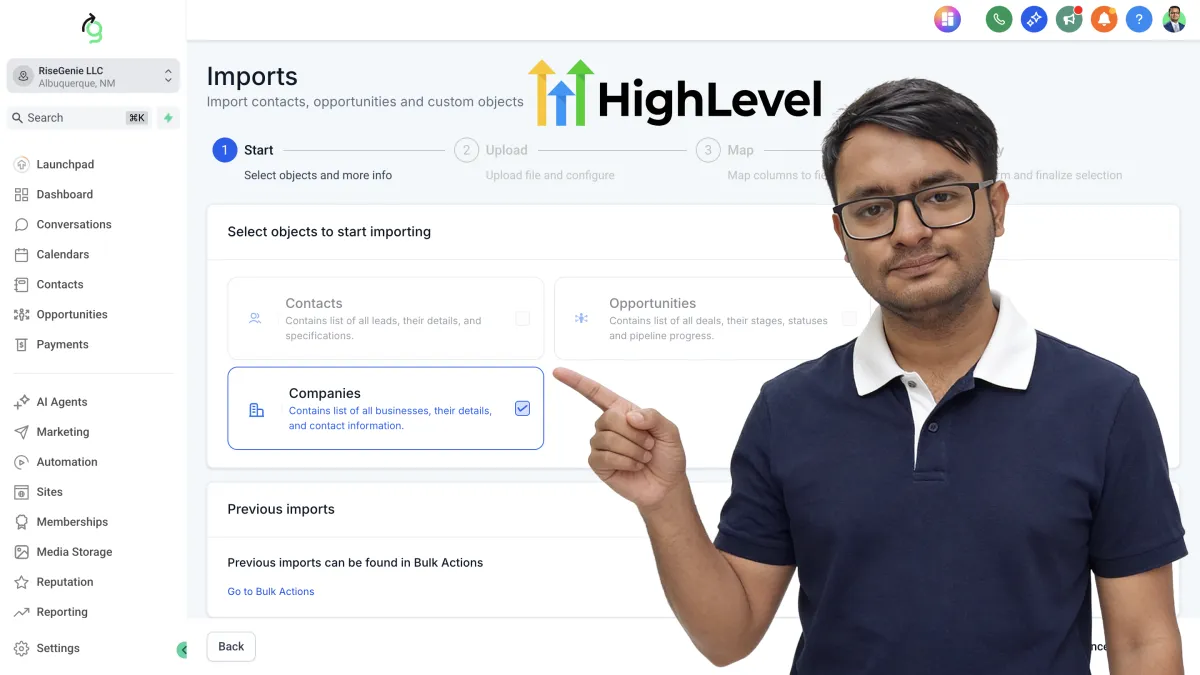
How to Bulk Import Companies in GoHighLevel CRM (Step-by-Step)
GoHighLevel Introduces Bulk Import for Companies: Faster CRM Data Management
GoHighLevel continues expanding its CRM capabilities with the release of Bulk Import for Companies, a feature designed to simplify how businesses migrate and manage company records at scale. For agencies and businesses managing large client databases, manually creating company profiles can be time-consuming and prone to errors. This new feature solves that challenge by allowing users to import company records in bulk through a structured CSV-based workflow.
With a guided step-by-step interface, built-in duplicate detection, smart field mapping, and detailed import tracking, GoHighLevel makes it easier than ever to move company data into the CRM accurately and efficiently. Currently, this feature is available behind GoHighLevel Labs and can be enabled for testing within subaccounts.
This update is particularly valuable for agencies onboarding new clients, migrating from other CRM platforms, or managing multiple organizations within a single account.
Enabling Bulk Import for Companies
Since this feature is currently in its experimental stage, it must be enabled through the Labs section within a sub-account.
To activate the feature:
Subaccount → Labs → Enable “Company and Custom Object Import”
Once enabled, users can begin importing company records directly through the CRM import interface.
A Guided 4-Step Import Workflow
One of the most important aspects of this update is the structured four-step import process, which ensures accuracy and minimizes data errors during the import.
The workflow includes the following steps:
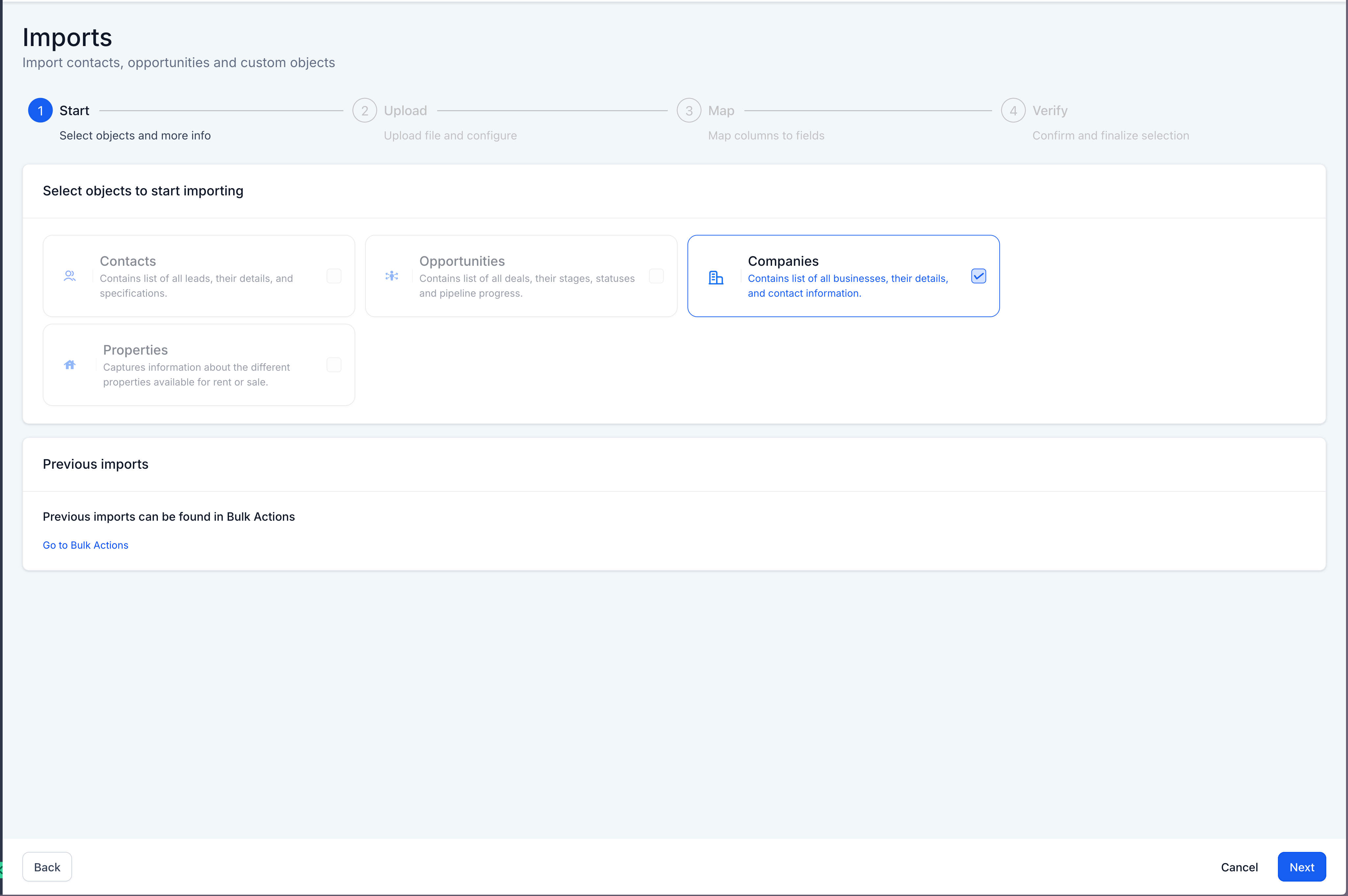
1. Start
The process begins with selecting the object type to import. Users can choose Companies as the import target, allowing the system to prepare the correct data structure.
The interface also shows other supported objects like contacts and opportunities, but in this case the focus is on importing company records.
This step ensures that GoHighLevel understands the type of data being uploaded before the file is processed.
2. Upload
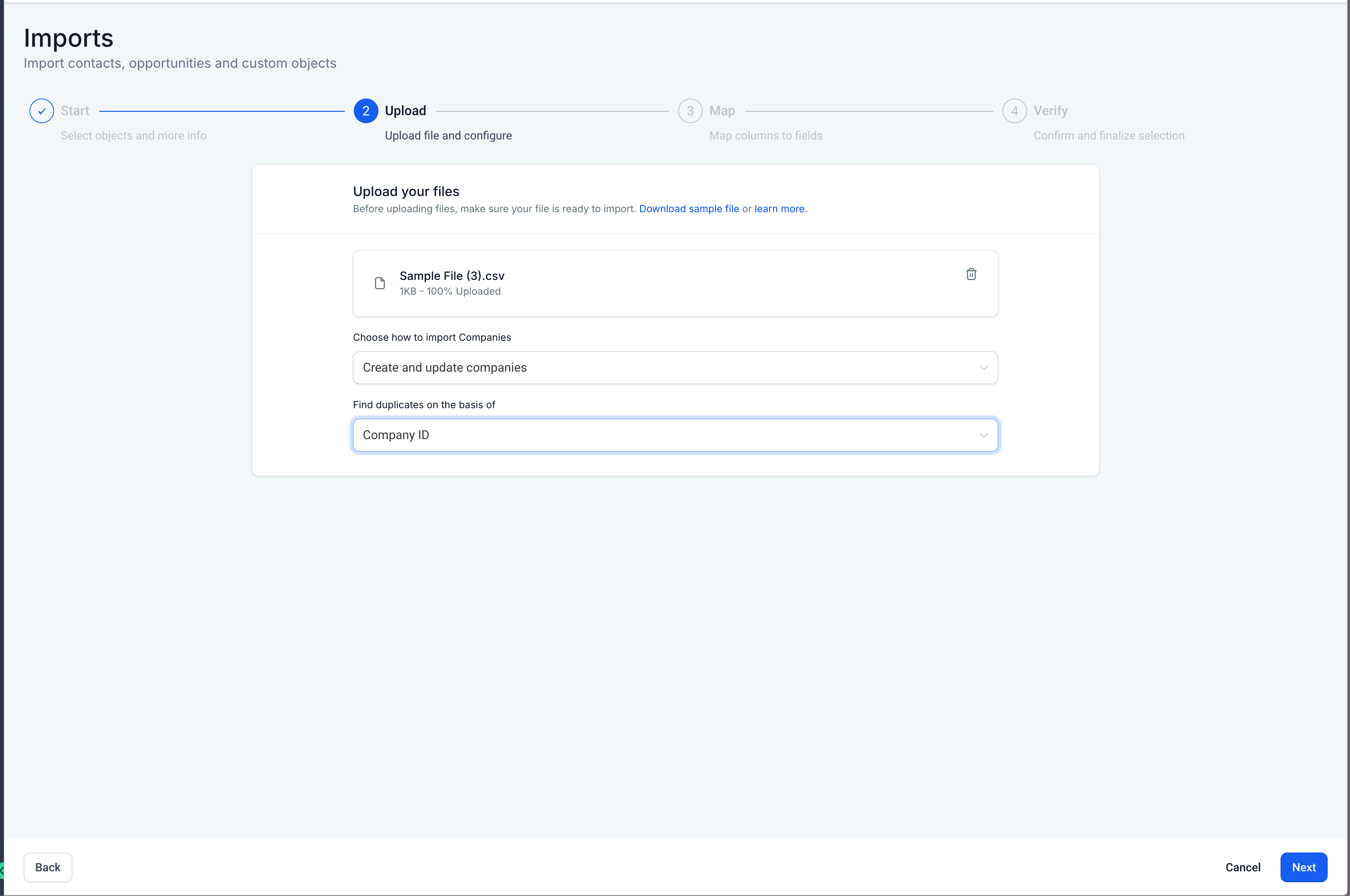
In the upload stage, users provide a CSV file containing company information.
Typical fields may include:
Company name
Phone number
Email address
Website
Address details
State or region
Custom company attributes
Users can also download a sample CSV template to ensure their data follows the correct format.
During this step, users must choose how the system should handle the import. GoHighLevel provides three flexible options:
Create new companies
Create and update existing companies
Update existing companies only
These options give users complete control over whether they are adding new companies or updating records that already exist in the CRM.
3. Map
After uploading the CSV file, the system automatically detects column headers and allows users to map them to the correct CRM fields.
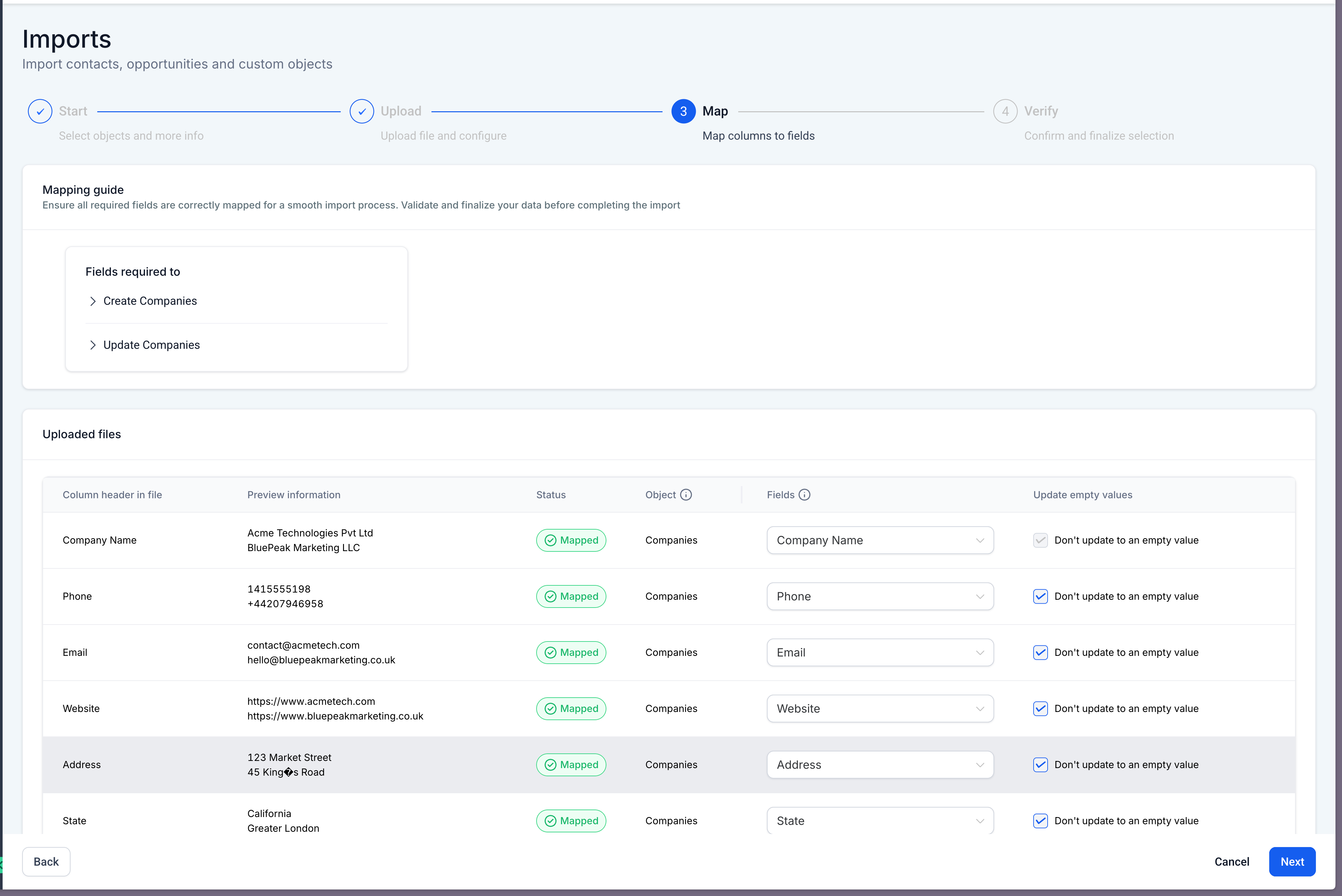
The interface displays preview data from the CSV file, helping users verify that each column is mapped correctly.
This preview feature significantly reduces the chance of mismatched data fields.
Another important safeguard introduced here is protection against overwriting existing data with empty values. If the CSV contains blank fields, GoHighLevel will not replace existing CRM information with those empty entries unless explicitly allowed.
This helps maintain clean and accurate data inside the CRM.
4. Verify
Before executing the import, GoHighLevel presents a verification screen summarizing the entire import configuration.
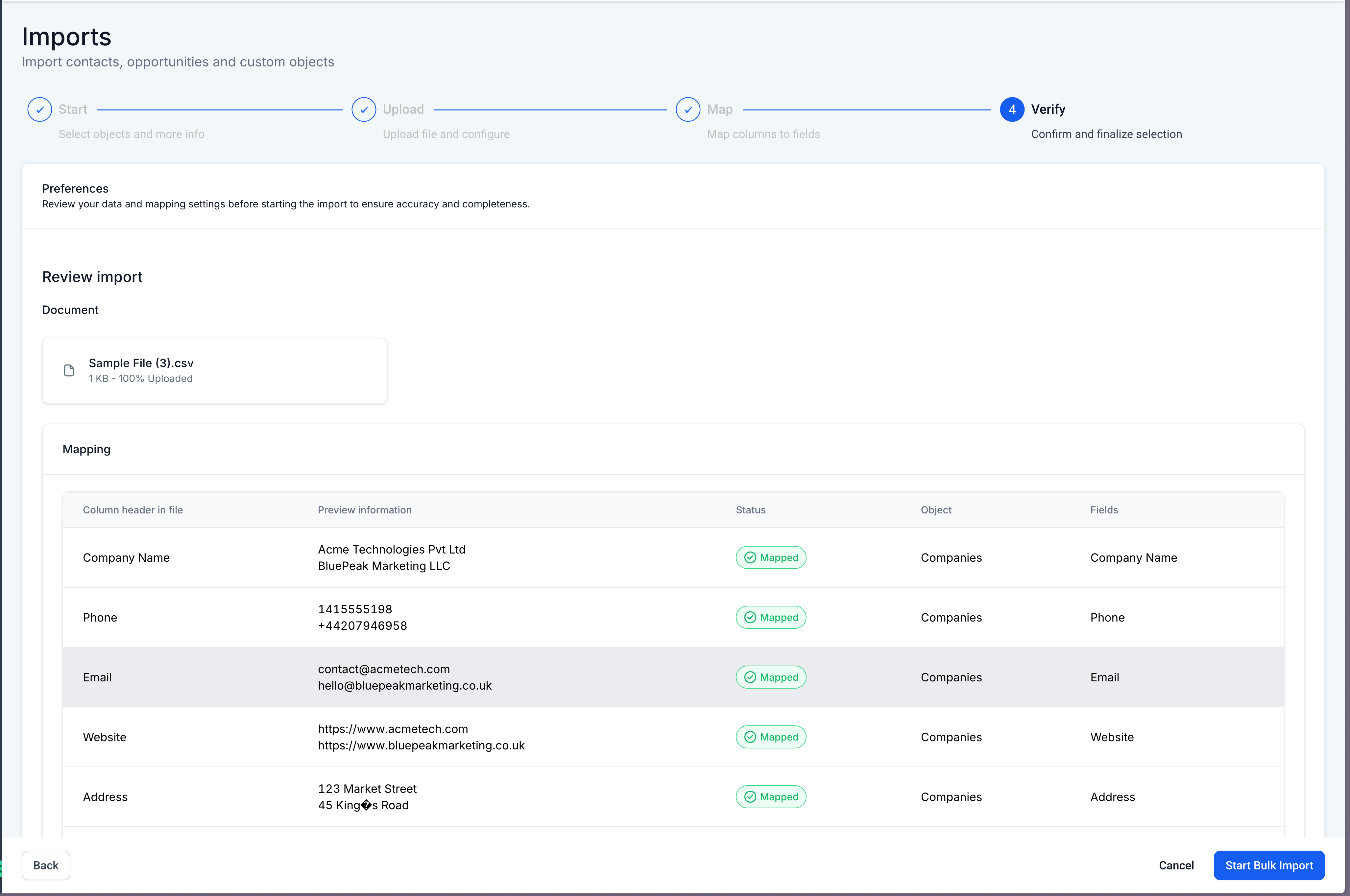
Users can review:
Uploaded file details
Field mappings
Selected import options
Duplicate detection settings
Preview data
This final review step acts as a safeguard, ensuring everything is configured correctly before the import begins.
Once confirmed, the user can initiate the process by clicking Start Bulk Import.
Duplicate Detection Using Company ID
Duplicate company records are a common issue during large CRM imports. GoHighLevel addresses this with built-in duplicate detection based on Company ID.
When importing records, the system checks existing companies using the Company ID field. If a matching record is found, GoHighLevel can either update the existing record or skip it depending on the import option selected.
This prevents the creation of multiple records for the same organization and helps maintain a cleaner CRM database.
Dedicated Bulk Actions Page for Tracking Imports
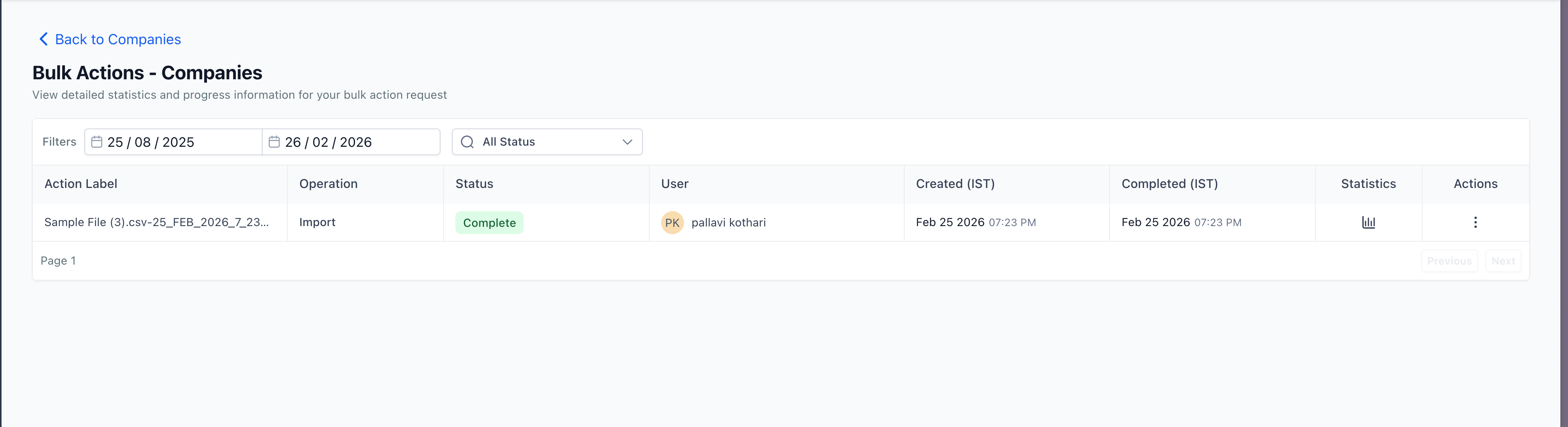
Another important addition is the Bulk Actions – Companies page, which acts as a monitoring dashboard for all company import activities.
Once an import is initiated, the system records the operation and displays it on this tracking page. Users can see:
Import file name
Operation type
Status of the import
User who initiated the import
Import start and completion time
This centralized tracking page allows teams to monitor imports and review previous actions whenever needed.
Detailed Import Statistics and Reporting
GoHighLevel also provides a comprehensive import statistics dashboard that gives users full visibility into the outcome of each import.
The statistics include:
Successful records
Errors encountered
Warnings generated
Each imported row is tracked individually, allowing users to quickly identify which records were processed successfully and which ones encountered issues.
Additionally, users can download a detailed import report, which provides an audit-friendly summary of the entire import process. This is especially useful for teams handling large datasets or performing CRM migrations.
Why This Feature Matters
The Bulk Import for Companies feature addresses several real challenges that businesses and agencies face when managing CRM data.
Faster CRM Migration
Businesses transitioning from another CRM platform can now move company records into GoHighLevel quickly using structured CSV imports. This dramatically reduces migration time.
Reduced Manual Work
Instead of creating company records individually, users can import hundreds or even thousands of companies in a single workflow.
Improved Data Accuracy
Features like field mapping previews, duplicate detection, and overwrite protection help ensure that imported data remains accurate and consistent.
Better Onboarding for Agencies
Agencies working with multiple clients often need to onboard many company records at once. Bulk import simplifies this process and makes onboarding significantly faster.
Full Transparency and Auditability
With tracking dashboards and downloadable reports, users gain complete visibility into what happened during each import.
